
Need to block an IP address in WordPress? You can do it using a security plugin, your web server, or your hosting provider or CDN. This WordPress block IP address guide covers every method, from a one-click plugin to server-level rules, without locking yourself out.
Whether you’re dealing with brute-force login attempts, spam bots, aggressive crawlers, or content scrapers, this guide explains the best ways to block IP addresses while avoiding accidental lockouts.

WordPress Block IP Address: Which method should you use?
| Method | Difficulty | Best for | Blocks Before WordPress? |
|---|---|---|---|
| WordPress plugin | Easy | Most website owners | NO |
.htaccess (Apache) | Intermediate | Apache servers | Y |
| Nginx configuration | Intermediate | VPS or dedicated servers | Y |
| Hosting provider or CDN | Easy | High-traffic websites | Y |
If you’re unsure which option to choose, start with a plugin. It’s easier to manage, doesn’t require server access, and lets you reverse mistakes in seconds.
How to find the IP address you want to block
Before you can block an IP address in WordPress, you first need to identify where the unwanted traffic is coming from.
Common places to find visitor IP addresses include:
- WordPress activity logs
- Security plugins
- Hosting access logs
- Apache or Nginx access logs
- Cloudflare Analytics
- Contact form submissions
- Failed login records
Look for patterns such as:
- Hundreds of failed login attempts
- Dozens of requests every minute
- Spam form submissions
- Repeated requests to
/wp-login.php - XML-RPC abuse
- Content scraping
Modern websites receive traffic from both IPv4 and IPv6 addresses, so make sure the solution you use supports both formats.
Option 1: Block an IP address with a WordPress plugin (Recommended)
For most WordPress sites, using a plugin is the easiest solution.
Instead of editing configuration files, you simply locate the suspicious visitor in your activity log and add their IP address to your blocklist.
A good security plugin should let you:
- Block individual IP addresses
- Block entire IP ranges
- Block IPv6 addresses
- Automatically block repeat offenders
- Whitelist trusted visitors
- Keep an audit trail showing when and why an address was blocked
This approach is especially useful on managed WordPress hosting where direct server access may be unavailable.
Option 2: Block an IP address using .htaccess (Apache)
If your website runs on Apache, you can block traffic before WordPress loads.
Add the following rule to your .htaccess file:
<RequireAll>
    Require all granted
    Require not ip 203.0.113.45
</RequireAll>
Blocking at the server level reduces unnecessary requests before they reach WordPress, improving performance during attacks.
Before editing .htaccess:
- Create a backup
- Double-check your syntax
- Test the site immediately after saving
A syntax error can temporarily make your website inaccessible until the configuration is corrected.
Option 3: Block an IP address in Nginx
If your server uses Nginx instead of Apache, add:
deny 203.0.113.45;
allow all;
After updating the configuration, reload Nginx so the changes take effect.
Like Apache, this blocks requests before WordPress is executed, reducing server load during attacks.
Option 4: Block an IP through your hosting provider or CDN
Many hosting companies and CDNs, including Cloudflare, allow you to block traffic directly from their dashboards, which is useful if you’d rather not manage WordPress block IP address rules manually.
Benefits include:
- Stops requests before they reach your server
- Reduces bandwidth usage
- Protects multiple websites
- Often includes country-level blocking
- Doesn’t require editing server configuration
This is an excellent choice for websites experiencing high volumes of malicious traffic.
Block an IP From Comments Without a Plugin
If comment spam is your only problem, WordPress has a built-in way to block IP addresses without installing anything.
- Go to Settings > Discussion in your WordPress dashboard
- Scroll down to the Disallowed Comment Keys field (previously called the Comment Blacklist)
- Paste in the IP address, one per line
- Click Save Changes
Any comment submitted from that IP address will be sent straight to the trash. This method is fast and free, but it only blocks comments, the visitor can still browse the rest of your site normally.
If you’re dealing with brute-force login attempts, spam bots hitting your contact form, or WordPress block IP address needs beyond comments, one of the options below will give you full-site protection instead.
How to block an entire IP range
Sophisticated attackers rarely use a single IP address.
Instead, they rotate through addresses within the same network. If you only block one IP at a time, WordPress IP address blocking becomes a game of whack-a-mole.
Instead of blocking one address at a time, you can block an entire subnet.
Examples include:
- IPv4
/24(256 addresses) - IPv6
/64(standard IPv6 subnet)
Example:
203.0.113.0/24Range blocking is much more effective against automated attacks, but use it carefully because legitimate users may share the same network.
When you shouldn’t block an IP
Blocking isn’t always the right solution.
Avoid blocking an address if:
- It’s your own office network
- It’s a mobile carrier shared by many users
- It’s a VPN used by legitimate customers
- The suspicious activity happened only once
- You’re unsure whether the traffic is actually malicious
When in doubt, monitor activity for a little longer before blocking.
If you’re not sure whether an IP address is actually malicious, a reputation checker like CleanTalk or Spamhaus can confirm it before you commit to blocking. This is especially useful when the traffic looks suspicious but doesn’t clearly match a known attack pattern.
IP blocking is only one layer of security
WordPress remains one of the most targeted platforms online. Patchstack’s State of WordPress Security report found 11,334 new vulnerabilities disclosed across the WordPress ecosystem, a 42% increase year over year, which shows how much of the attack surface comes from constantly evolving threats, not just repeated login guesses.
Blocking IP addresses helps stop individual attackers, but it won’t prevent every attack.
For stronger protection, combine IP address blocking with:
- Login rate limiting
- Two-factor authentication
- Strong passwords
- CAPTCHA
- Web application firewalls
- Activity logging
- Malware scanning
Using multiple layers of security is much more effective than relying on IP blocking alone. Most malicious IPs come from automated login bots, so pair IP blocking with proper WordPress brute force protection.
How Obzervi simplifies IP blocking
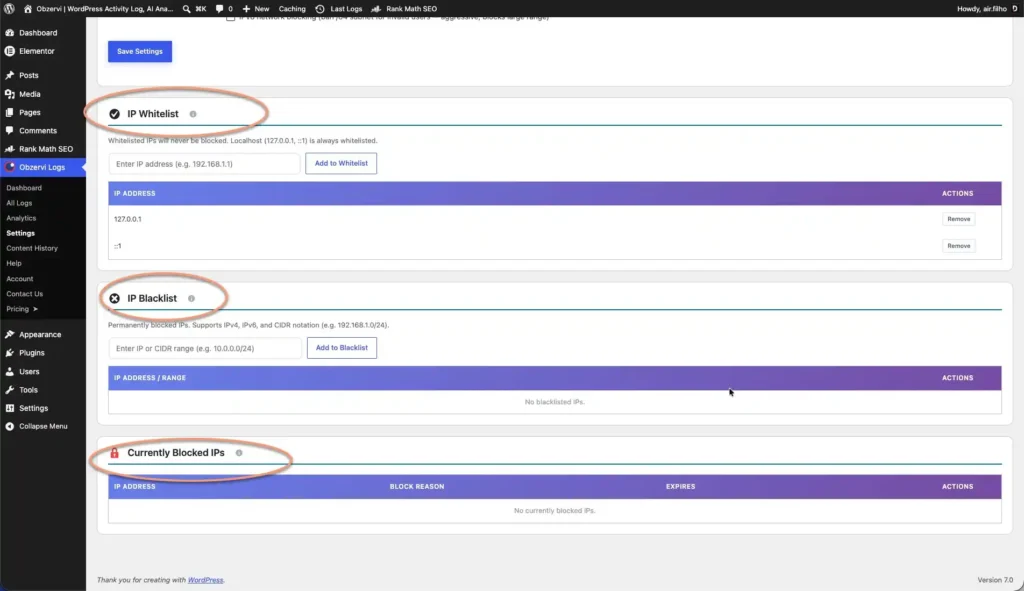
Manual IP management works well for occasional abuse, but it quickly becomes difficult when attackers rotate addresses or repeatedly target your website. This is where dedicated WordPress block IP address tools make the difference.
Obzervi makes blocking malicious visitors part of your normal monitoring workflow.
From the activity log, you can:
- Block an IP address with one click
- Block IPv4 and IPv6 ranges
- Automatically ban repeat offenders
- Configure escalating lockout rules
- Manage your whitelist and blacklist in one place
- Keep a complete audit trail of every blocked address
Instead of jumping between server files, hosting dashboards, and security plugins, everything is managed directly inside WordPress.
Try Obzervi free → https://obzervi.com
Frequently asked questions
How do I block an IP address in WordPress?
The easiest way to handle WordPress block IP address needs is using a security or activity log plugin. Simply locate the suspicious visitor in your logs and block their IP address. You can also block IPs using Apache, Nginx, or your hosting provider.
Can I block an IP address without a plugin?
Yes. If you have server access, you can handle WordPress block IP address rules using Apache’s .htaccess file or your Nginx configuration. Many hosting providers and CDNs also offer IP blocking tools.
Can I block an entire IP range?
Yes. Blocking a subnet is often more effective than blocking individual addresses because attackers frequently rotate IPs, so WordPress block IP address strategies that only target single addresses tend to fall behind quickly. Common examples include IPv4 /24 and IPv6 /64 ranges.
Does blocking an IP stop bots?
It stops bots using that specific IP address. However, sophisticated bots often rotate through many IPs, so combining IP blocking with rate limiting and firewall protection provides much better security.
Does blocking an IP address hurt my SEO?
No. Blocking a malicious IP address doesn’t affect your search rankings. If anything, it works in your favor, since a site free of spam traffic and bot activity tends to load faster and stay more stable, both of which matter for SEO. The only case where blocking could backfire is if you accidentally block a search engine crawler’s IP, which is why it’s worth double-checking an address before adding it to a permanent block list.
Can I block an entire country?
Yes. Many security plugins, hosting providers, and CDNs allow country-level blocking using geolocation rules.
How do I avoid locking myself out?
Always whitelist your own IP address before creating blocking rules. If your IP changes frequently, consider allowing trusted administrator accounts through additional security measures instead of relying solely on IP addresses.
Install Obzervi for free and start tracking user activity in WordPress today.
